And believe it or not, that is Me!!! For I have never considered myself a Wallpaper Artist, but just simply as someone that has always just been creating what I enjoy seeing on My Desktop and sharing it with Oh so many of You and believe it or not, it is so easy to do, that is if you know where to start and what to do!!! And That Is What This Blog Is All ABOUT...How To Make Desktop Wallpapers For Your Own Desktop and Hopefully You Will Share Them With All Of Us!!! And The Best Part Of All, You Can Get Started Do This For FREE!!! For More Information About What This Blog Is All About And How To Get Started Making Your 1st Wallpaper, Well Just Simply Click On...[About] Below...And Let's Get Started!!!

My 1st Wallpaper

Well if you have, then you are in the right spot for this Blog is totally devoted to teaching anyone how and it's all done with a "Free" Photo Editor that I have just found and I thought what a great way to pass on what I know and do to anyone and everyone that would like to know how Wallpapers are "BORN" and hopefully it might make for a Great Blog, or at least I'm hoping so!!!

So if you have ever wanted to create Your Own Custom Desktop Wallpapers, well now here is Your chance to give it a try with step-by-step instructions, not only telling you how, but also showing you how and when you are done, you will have created the exact same wallpaper has shown above!!! OK? Ok. Just click on [About] above to get started!!!

Your Wallpaper Buddy For Oh So Many Years Now
At Brent's Male Wallpaper's II - Reborn
()( BRENT )() 

And Now, Some Walls From Others That Want To Share Their Work With You....And before You Download/Save Something That You See and Want....Please Vote For It....It is just one simple click that is the heart beat of this Blog and it means so much to many that are sharing their work here!!!  And it is with the highest of hopes that you show a little bit of your love and support by either a vote on their postings and/or a comment....(Note: Comments are open to ALL, you do not need a Google Account to leave a comment here!)....For with out them, well there just maybe nothing here in the future for You to DOWNLOAD!!!!  Think About Guys and then at least CLICK A VOTE BEFORE DOWNLOADING!!!
Showing posts with label Q an A. Show all posts

Monday, June 9, 2014

How To Hide Your Desktop Icons?

Shared By David: "Hey Brent, while this is not per say a question, nor a comment, but more of a suggestion that I think your current new blog fans might enjoy hearing about and that is the posting that you did many, many moons ago on your Wallpaper Blog that was titled "Desktop Tip" where you shared a free program know as "Iconoid" that I'm still using to this day and I'm sure you are also and that would solve many of your current blog fans problems with wallpapers that do not match their screen size. Just a thought that I think might be of help to many has it was to me when I first saw it on your blog years ago. David"

WOW David, you know that old saying sometimes you can not see the forest for all the trees!!! Well Wallpaper Buddy, this is one of them and what a great reminder to share with all My current Blog Fans here!!! Yes "Iconoid" is a free light weight little program that I have been using for years now and it goes all the way back to Windows 98 and is still going strong to this day under Windows 8!!!  So what is "Iconoid" you are asking, well it is just a simply little program that for one, "HIDES" all your desktop icons automatically after 10 seconds of your mouse not moving, which allows you to enjoy you Desktop Wallpaper without any of your desktop icons covering up anything, as shown here.....
(My Desktop With Iconoid And My Mouse Just Moved)
(Now My Desktop With My Mouse idle for 10 sec.)
And if you want your lower bottom task bar to disappear also, their is a setting for that as well as your cursor also, then you have a COMPLETE FULL MONITOR view of you favorite Wallpaper and when you want everything to re-appear, just move your mouse. DA TA!
  
For two, the other sweet thing this program does is that it can line-up ALL your Icons either to the Right, to the Left, to the Top, to the Bottom or ALL AROUND THE OUTER SIDES, like I prefer with just a click of a button!!! This is great depending on what your current Wallpaper you may have.
   
And for three, for those of you that have a Monitor that the Wallpaper size doesn't fit, then this Utility Program uses Auto Bordering that best matches a color that borders the smaller Wallpaper for your Monitor or you can set it to any color that you would like, such as black.  The following is my Wide Screen Monitor with Bryan's Standard Size Wallpaper...
(This Is Version #1 With A Light Brown Border)
(While This Is Version #2 With A Dark Gray Border)
(Both Were Auto Bordered By Iconoid) 
And as you can see this is much better than just blank white on both sides or if you have a standard monitor with a wide screen wall paper then the blank white on top and bottom are Auto Border with a matching color.
   
So as you can see, I'm really impressed with this program and all that it can do and I thank David for his reminder to share it with all of you!

The link to check it out and download it if you like what any one or these three things that you are seeing for computers running Windows XP through Windows 8....is....

Hoping this information is of help to someone and if it is, please leave your comment or at least your vote!  Thanks

Your Wallpaper Buddy
With Hidden Hugs
()( Brent )()


IMPORTANT NOTICE TO ALL MY BLOG FANS HERE....

PS:  My Wallpaper Postings will resume tomorrow morning for those that were hoping to find something new here today or yesterday, that is if I see that those that are downloading without voting start doing so, for after all it is just a click away?  And I always wanted this Blog to be a two-way street Blog between those that create walls and those that are enjoying them!!!  AND IT CURRENTLY, WELL IT IS SIMPLY NOT!!! Come On Guys, Show Your Love And Support for those that are sharing what your are enjoying on YOUR DESKTOPS!!! DA and DA.. And if you continue to choose not do so, well I'm sorry to say, I simply see no reason to continue this one way street BLOG!!!  Just some food for thought Guys and while this is a lot of work for not only me, but also for all those that are sharing and it is I think the least you can do to keep this Blog Going?  And it doesn't matter which of the three you click on to cast your vote, click on one of them that is if you want this Blog to continue on?  This is YOUR LAST WARNING!!!  I'm go to give this Blog one more week and if things don't change, then I'm either going to close it down completely, or make it a private blog to invited readers only that I know that have been voting and emails will be sent to you if I choose to do this so that you will be able to log in with your e-mail address and password. Consider All Of You None Votes That Are Downloading Forewarn!

Saturday, May 24, 2014

How To View A Full Sized Version Of A Wallpaper?

Your Question? 
Brent you where talking about the importance for wall makers to view their work on their desktop on your posting of two walls in one by MRKreation and I was just wondering is there anyway for us that are just enjoying what you are posting here to see a full sized version of the wall before we save them?  A Wallpaper Lover that is loving your Blog by the name of Jonathan.


And My Answer!
And what a good question this is Jonathan and one that I feel just might help others that are wanting to know the same, so I'm posting it!  And YES there is Jonathan!!!  All you or anyone visiting this blog have to do is "Right" Click on any Wallpaper, on any of My Postings here and select from the "Drop Down Menu"....Open Link In New Tab!!!  This not only will show you the FULL SIZE VERSION of the Wallpaper in a New Tab, but if you like what you are seeing, well then just click and save it from that window.

Hoping this helps You and any and all others that just might like to know the same.  Wall Hugs to You Jonathan and thanks for taking the time to asked Your Question using the 'Got A Question', 'Got A Comment' Form on My Blog.

Your Wallpaper Buddy Always
()( Brent )()
Here In California

Tuesday, February 18, 2014

Do More With Gimp And That Is With Gimp Plugins, As They Do Within Many Photo Editor's Like Photo Shop!

Hey All You Other Fellow Wallpaper Makers!!!  And while this is Not A Question/My Answer Posting, And while Yes I know I said that the only postings that were were going to be made here were Your Questions and/or Your Walls that You created that You wanted to share with all of Us, but I have some Great News to report to all of You as I keep playing around with Gimp and I was afraid that just by adding it to the "Tips And Tricks" Page here on this Blog, Many of You would not see it, so I'm doing this Special Posting for this reason.  And that is because one of the many things that I have enjoyed using over the past many years with All My Professional Photo Editors and that being the many "Plugin Filters" that are available on line and many of them are "Free".  These Plugin Filters let me do things above and beyond what the Professional Photo Editors can do and come to find out that Gimp also as "Plugin Filters" and there are a whole bunch of them that will let you do all kind of things within Gimp!!!  Just use your favorite search engine for "Gimp Plugins" and you will see what I mean.  But the reason for this posting is I just found for Gimp one of my favorite Plugin Filters known as "Kaleidoscope" that is just endless for creating backgrounds for Your Wallpapers!  And for those of you that may remember Bryan W. 1st Wallpaper that He shared with all of Us here whereas He used Gimp's Stone Pattern and the Fill Bucket to create His Background as shown here....
Well look at what Gimp's Kaleidoscope Plugin can do to that same background and just by using all the default settings for a single image....
So if you are like me and you are wanting to do even more with Gimp, check out all the Plugins that are available and they are, like Gimp, all "Free".  You will find the Gimp "Kaleidoscope" Plugin by clicking (Here).
  
Once you have downloaded the zip file and unzipped it, then please read the "KaleidoscopeReadMe.txt" in how to install it!!  Very easy to do and once you have none so then open up Gimp, create a background of your choice, and then click on "Filters/Animation/Kaleidoscope Animation" and then select "Single Image" for "Create Kaleidoscope On" and Your Background will end up with (5) layers and the last one being the Kaleidoscope of Your Original Layer that you then can copy and paste for a new background!!!  And as you will see, the settings for Kaleidoscope are so many, making what you want for a background, IS ABSOLUTELY ENDLESS!!!
    
Hoping this information is of Help to someone, and I'm sure Bryan will enjoy playing around with this one!!!...(((Big Smile)))  And if you have any problems getting this to work with Your Version of Gimp, please feel free to ask me for HELP!!!!
    
With Big Wallpaper Hugs,
Your One And Only One Wallpaper Buddy
That Is Just Trying To Help
You Make Some Awesome Walls
That You Will Share With All Of Us!!!
()(Brent)()

Friday, February 7, 2014

A Question From Bryan W.

A Question From Bryan W. that read.....
"Been a fan of your work for the longest of time and I'm totally enjoying your new blog and I must admit to you that you have but a tickle in my pickle and I'm totally enjoying playing around with Gimp.  But I sure could use some help with trying to extract a stud that has extra hairy arms and legs and also with long hair, nothing I'm doing looks that good, how do you remove the background from studs like this Brent?  Bryan W.  PS: If you can solve this one for me, I promise You I will share my next wall with you and your blog fans."

Right On Bryan and what a Great Question this is, and I totally understand your problems and I'm Holding You To Your Promise, Since You ARE The First Follower Of This Blog!!! (((Big Smile))) So this his how I extract Extra Hairy Men and it is somewhat tricky and Men with Long Hair are even trickier, but both can been none within Gimp and here are two examples of this....
   
First, Men with hairy arms, legs and body hair as shown here by this stud...
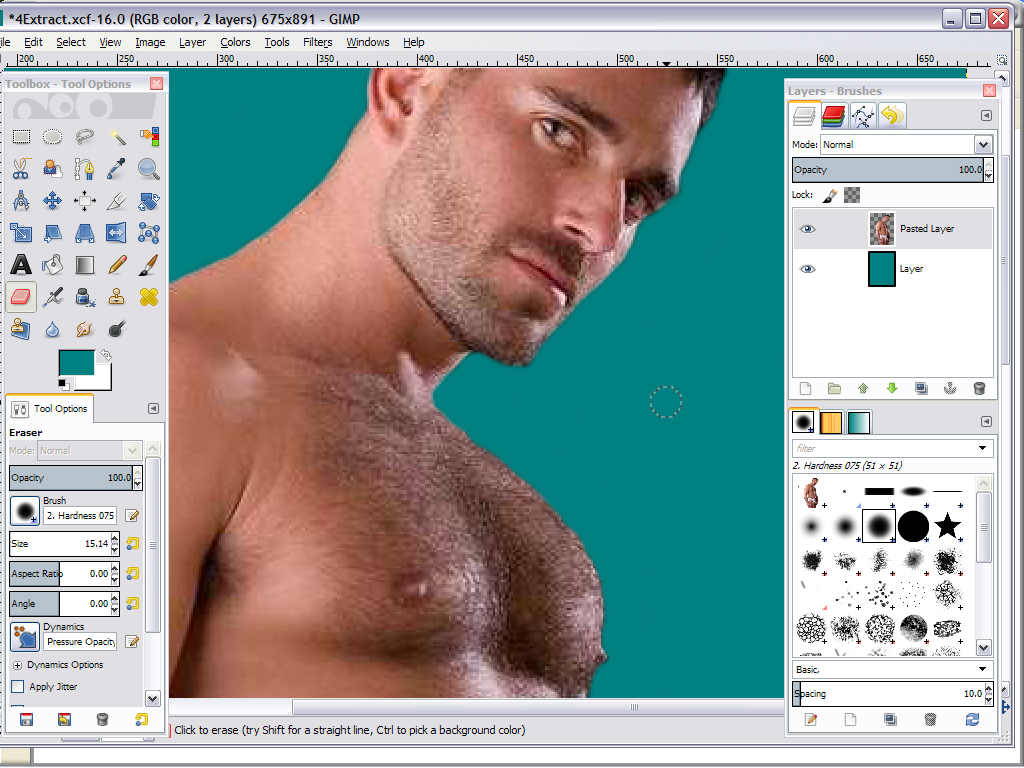
The trick here Bryan is YOU DO NOT WANT TO JUST ERASE to the edge of the hair on His Arms, Legs and/or Body as shown here has zoomed in on this Stud's Chest...
For when you do it this way, He is going to look like you HAVEN'T DONE A CLEAN extraction of Him when placing Him on a Background, as I have done and shown by the Red Arrows showing how dirty He will look on a Wallpaper of Standard Size as shown here...

But I have found that by erasing a Stud with extra body hair all the way down to the edge of HIS SKIN on his arms, legs and body, as shown here, which is zoomed back in on His Chest...
And while yes you will be removing some of His Hair all the way around His Body as shown here....
But He still will come across has a very hairy Man on Your Wallpaper as shown here on the same background in a standard size wallpaper....
Hoping you see what I mean and this answered your 1st question of how to extract extra hairy men.

Now for the Second Part Of Your Question, Men with long hair as I'm showing here and I just used within my last Wallpaper Collection...

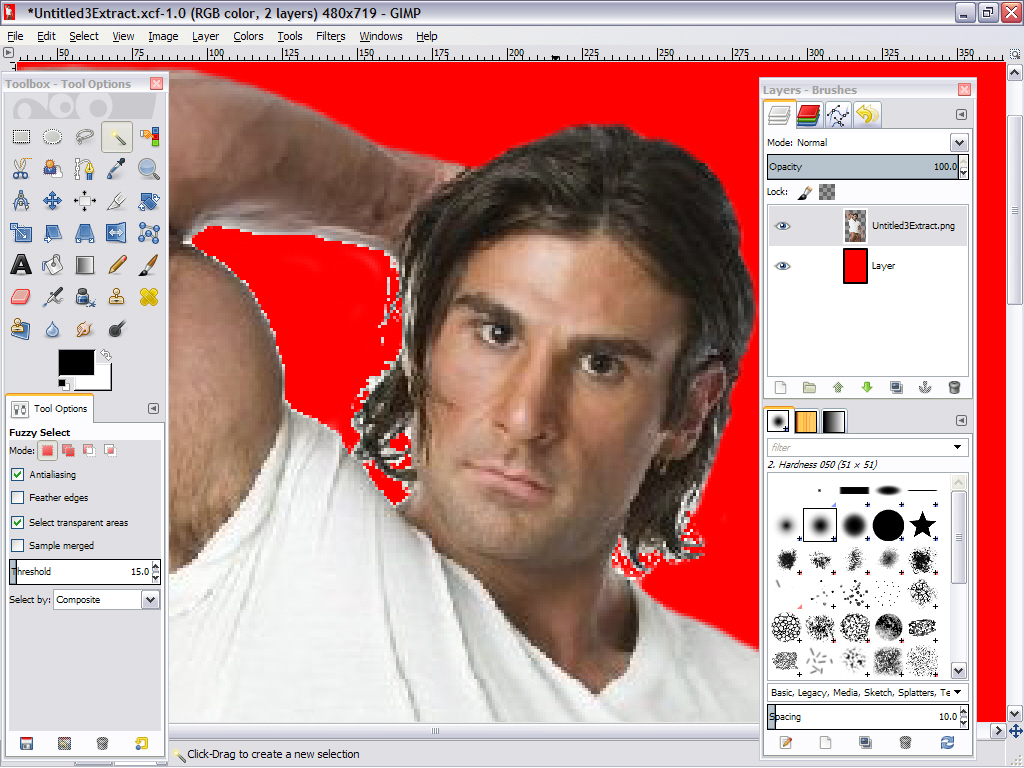
And here is a New Trick I haven't shared on this Blog yet and that is using Gimp's "Fuzzy Select Tool" and it works great for the task of removing background with men with long hair in most cases, not to mention other areas.  First click on the "Fuzzy Select Tool" in the tool box, as shown with the Red Arrow, and then moving your mouse to select the area that you are wanting to remove, in this case it is the "white area within the fold of his left arm" as shown by the Blue Arrow and left clicking on that area as shown here...
This now becomes the ONLY AREA THAT IS ACCESSIBLE TO OTHER GIMP TOOLS!!!  So simply click on the "Eraser Tool" and using a rather large eraser, for it does matter how large it is, the only part that can be erased is what is within the dotted triangle shape of the fold of His arm and in this case it's the "White Area" and erase all of it and after you have done this, this is what is shown....
Yes it's not so clean, as it is with many automatic extractors within my Professional Photo Editor's than I'm not that fond of,  but better than doing it by hand. Then I did the same for the other white areas within His hair and on the other side of his head and after doing so, this is what He looked like....
Then I zoomed all the way back out and clicked on the Fuzzy Select Tool once again, and then left click somewhere outside the photo, this TURNS OFF THE FUZZY SELECT TOOL and then I once again have full access to ALL of the photo and using a small eraser to finish cleaning up what white background remained till I had this...

And then when I placed Him on the background I had chosen, His long hair was still in place with about 99% of the white background removed as shown here in Standard Size...

Hoping this information is of Help to not only You Bryan, but also others.
   
Your Wallpaper Buddy Always,
That Is Just Wanting To Help Other's Do The Same
()()( Brent )()() 

PS: And if not, then Please Let Me Know!!!  Other wise, I'm looking forward to posting Your FIRST WALLPAPER!!!

Tuesday, February 4, 2014

A Question From Pat P.


A Question From Pat P. that read.....
"Have been a long time fan of your wallpapers.  Love your new blog.  And I've been working on a new wallpaper since I found your new blog.  Mine are OK, But I'm hoping that I can improve them.  A lot of my edges are fuzzy and have been working on them.  If you have any suggestions on how I can improve them,  please let me know.  Thanks."

And My Answer..
I hear you loud and clear Pat, and believe it or not, I found the same problem when I first starting doing my extractions of studs for the Walls way back in 2009 when I was trying to make my first ones!!!  The trick here, at least for me that is, after doing what I call the "Rough Extraction" as shown here, (which just happens to be what I'm working on for My Next Posting on My Wallpaper Blog)....

And I'm amusing that is what you have already done so far, a rough extraction that is, I would recommend to You that You Zoom way in on the Stud that you're trying to extract to the point that you are only able to see just a small portion of His Photo, like just the upper part of His shoulder, as shown here that I'm working on....
And that you are using an eraser Bush hardness of .075 , or you might even try using an eraser Bush hardness of 100 within Gimp, before you begin your final extraction of Him,  and working your way up from His shoulder, to the top of His head, as I have done above.
And when you zoom all the way back out you should see a nice clean edge of what you just erased, as shown here....
This is how I get a nice clean extraction of Studs within Gimp and that I'm now using for My All My Wallpapers on My Blog!!!  For I'm Finding Some Things Within Gimp, I'm not even finding within ANY OF My Pro Editor's And I'm Loving What Gimp Is Doing!!!
   
Hoping this Answers Your Question And As Been Of HELP to You Pat and also to others!!!
   
Your Wallpaper Buddy Always,
That Is Just Wanting To Help Other's Do The Same
()()( Brent )()() 

PS: If You're Not Please With My Answer, Then Please Let Me Know!!!  Other wise, I'm looking forward to posting Your FIRST WALLPAPER!!!
Related Posts Plugin for WordPress, Blogger...